

1. Pick a template
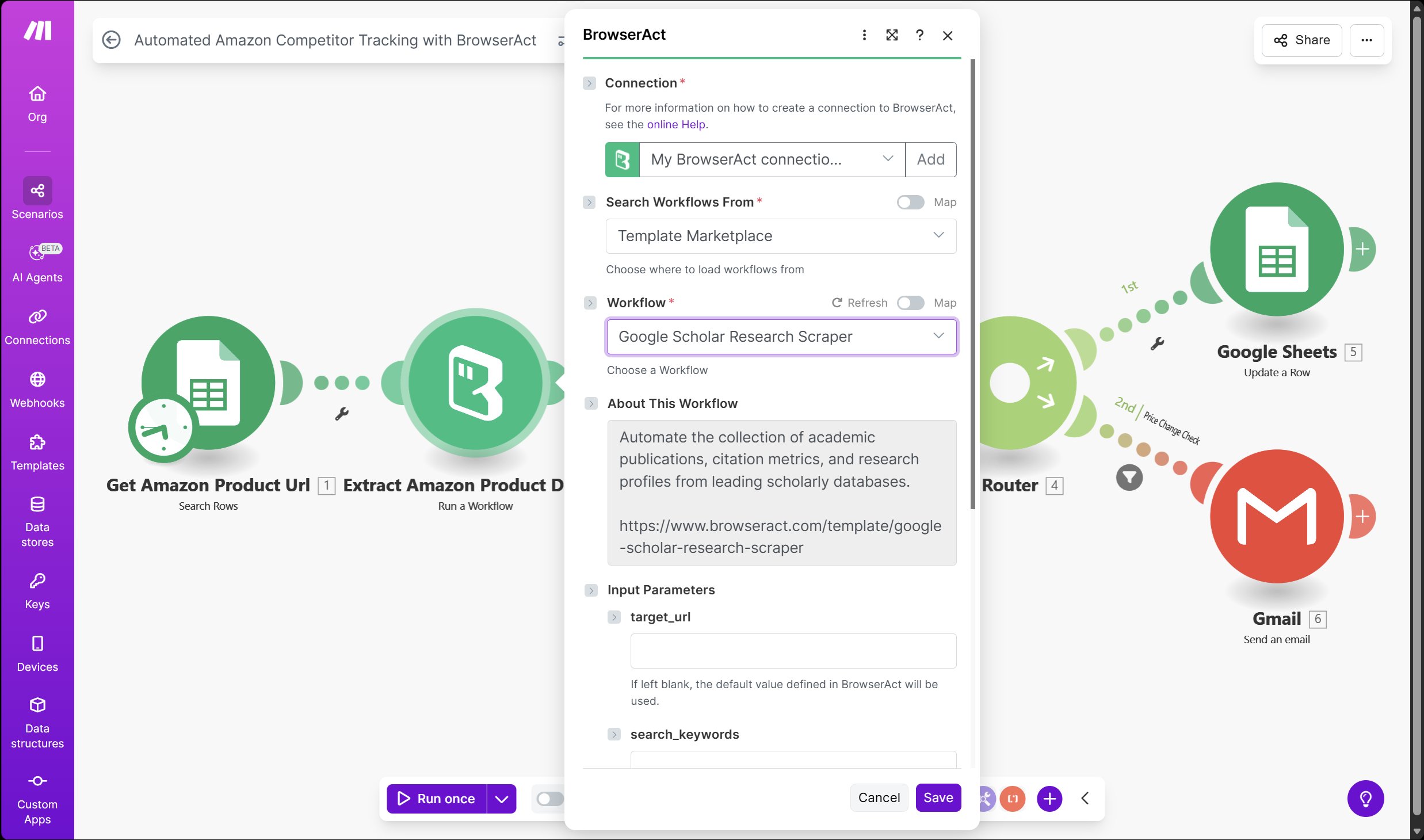
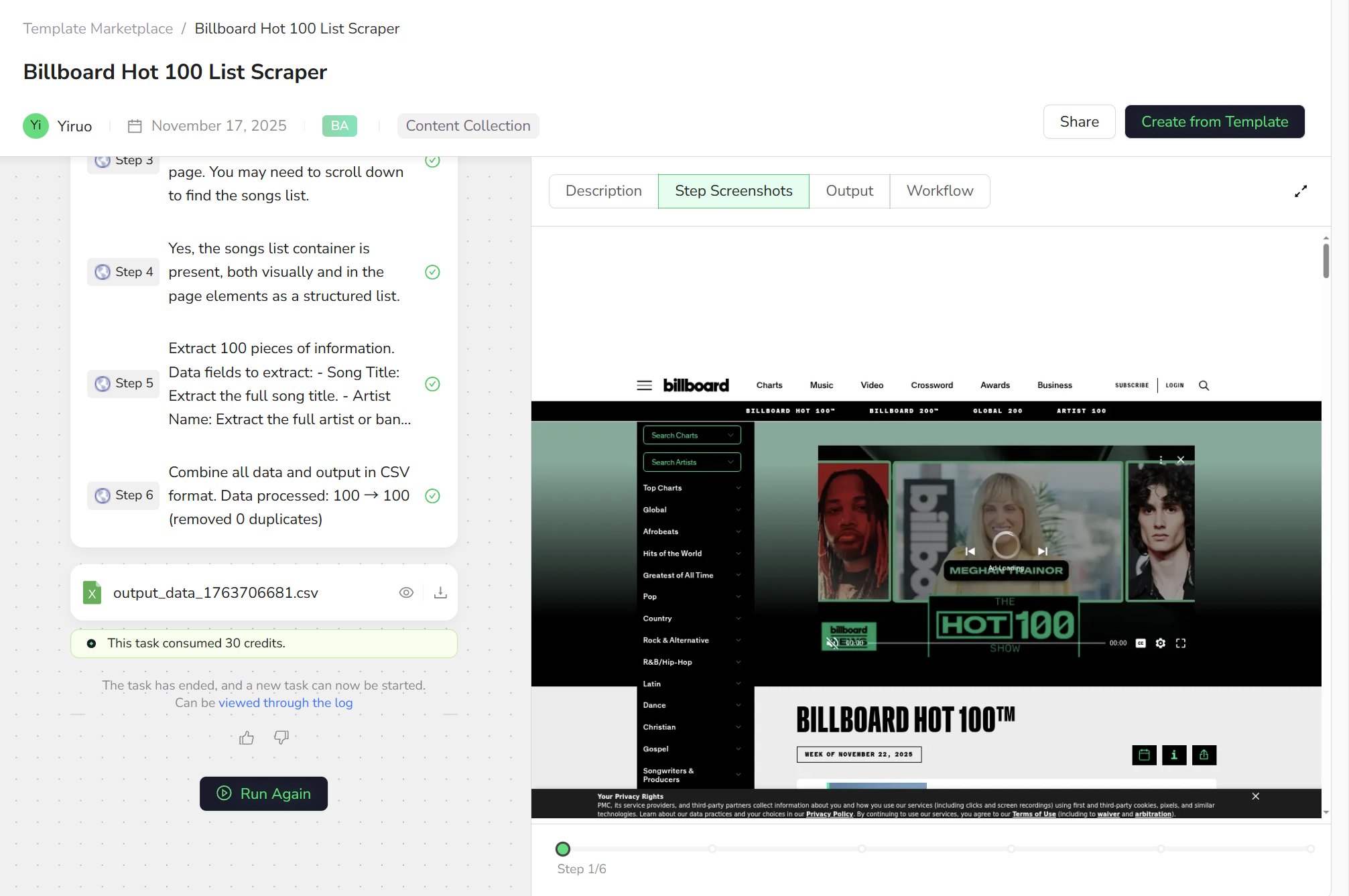
In the left sidebar, click Template Marketplace. You’ll see a page of cards – each card is a pre-built workflow. For your very first try, choose a template that does not require login, for example:- Billboard Hot 100 List Scraper (scrapes chart songs)
- Or similar public-site templates like Google News Scraper, Reddit Scraper, etc.
2. See what the template expects
On the left side of the template detail page, you’ll see a Start block. This is the entry point of the workflow, and it usually contains a few input parameters, such as:target_url– the target page URLproduct_limit– the maximum number of items to fetch in this run
-
Keep the default
https://www.billboard.com/charts/hot-100/ -
Set
product_limit = 100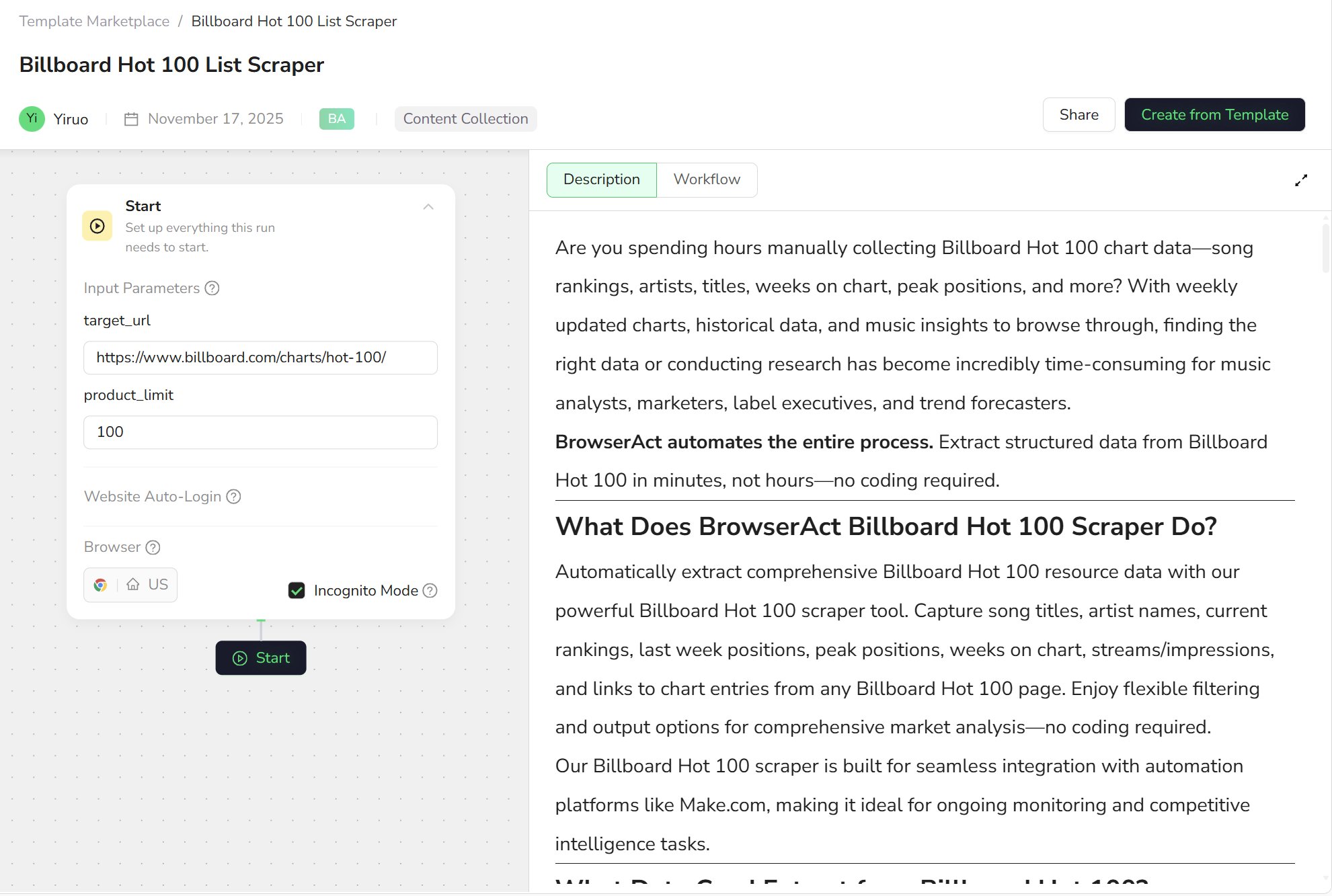
3. Run it once
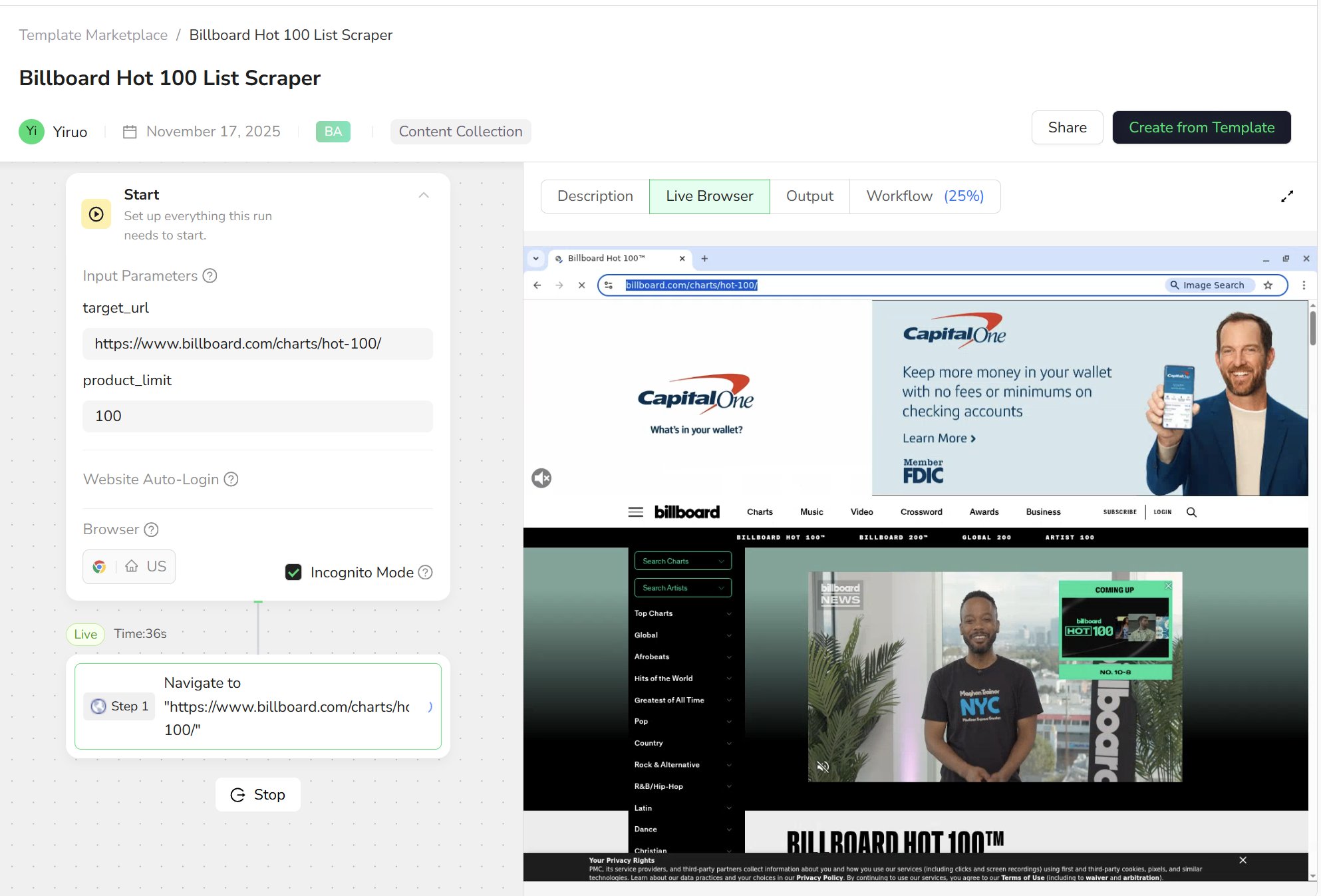
At the bottom of the template page (usually under Start), you’ll see a button to launch the run, such as Start or Run.- Click the button to start the run.
- The view will switch to Live Browser, where you’ll see a real browser window automatically open the target website.
- Below, you’ll see the current step (Step 1, Step 2, …) progressing through the workflow.
- Open the page
- Close pop-ups / scroll the page
- Move to the list area
- Loop through each song / news item / list entry
4. Check the result: what did this Run do?
When the run is finished, switch to the Output tab at the top. You’ll usually see:- A table, where each row is one record
- e.g. a song, a news item
- Columns representing fields, such as
- rank, title, artist, link, etc.
- A complete run record (Run)
-
A structured dataset you can download, analyze, or export
5. Connect the experience to the Core Concepts
Now let’s map what you just did to the three core concepts.- The template you selected → is essentially a pre-designed Workflow, created for the business goal “scrape the Billboard Hot 100 chart”.
- The blocks inside that template (open page, scroll, extract fields…) → are the individual Nodes.
- This one time you clicked Run, from start to finish → is a Run / Task – one full execution of that workflow.
6. What’s next?
Once you’ve successfully run your first template, you can:- Change parameters and run again
- Try different keywords
- Point to another URL
- Increase or decrease the number of items to fetch
- Open the workflow canvas behind the template
- See how the workflow is composed from multiple nodes
- Get a feel for how steps link together
- Clone the template and make small adjustments
- Extract an extra field
- Scroll more pages
- Adjust limits or error handling to match your use case